
A register is one till in your venue, for example the screen at the bar counter or the tablet on the terrace. Every register has its own settings. This guide shows where to find them, how the till shows online orders and what each setting does.
Managing registers
Open your restaurant on partner.elyvent.com and tap Infrastructure → Registers. Add register creates a new register and asks only for the name. Everything else is set on the register's page.
If the entry is missing, the POS system is off under Settings → Features, or you lack the right for registers.
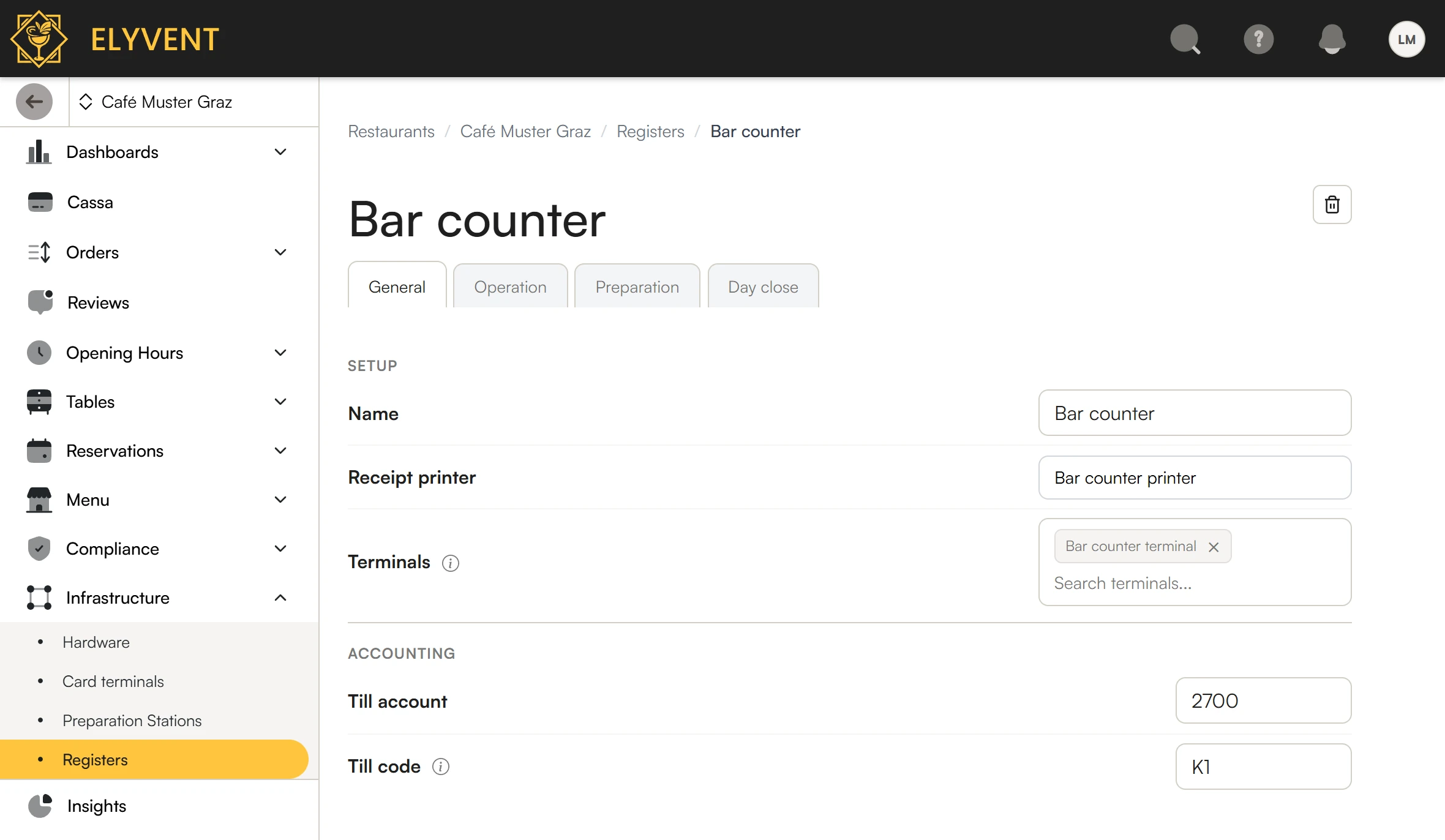
The page has four tabs: General, Operation, Preparation and Day close. Every change applies at once; Saved shows briefly at the bottom. Only the day-close steps and the comparison of non-cash payments are edited in a window of their own with Save.
Online orders at the till
When a guest orders with the Elyvent Code, the order is transmitted to printers, the kitchen display and tills. The till shows it on the floor plan at the guest's table. How it does so is set per register under Operation.
Table colours
The floor plan shows the state of each table as a colour: nothing open, open items or an unpaid bill.
When a guest orders online, their table gets a phone icon and turns . The colour fades to within the set minutes; set them under Operation → Purple after an online order: 1 to 1440, default 60. A table with open items or an unpaid bill stays ; the phone icon still shows the online order.
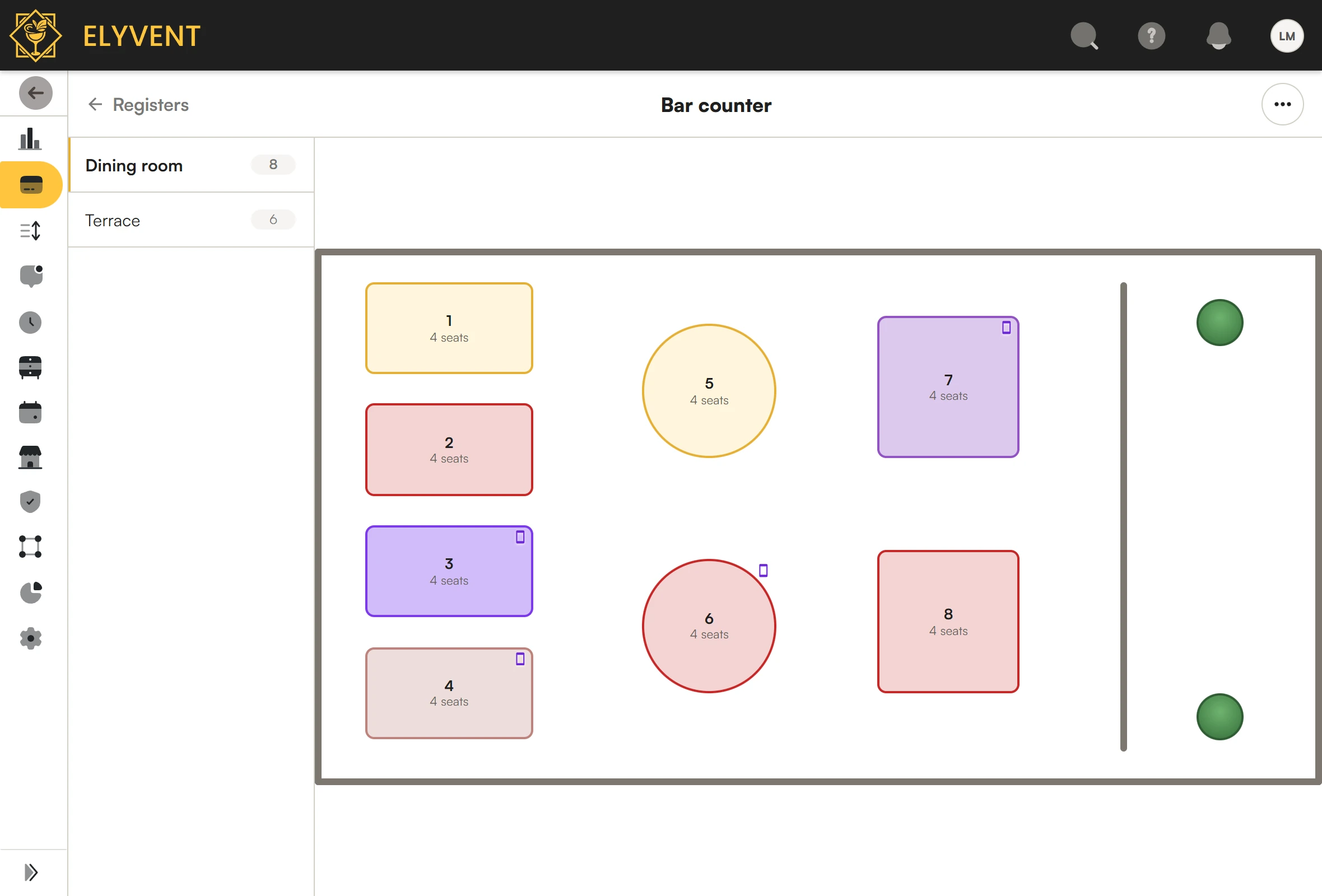
Set to 60 minutes: the orders at tables 3, 7 and 4 are 2, 28 and 47 minutes old. Table 6 has an open bill; the phone icon shows its online order.
To make sure no online order is missed, switch on Confirm online orders. The table then stays until someone confirms the order, see Confirm online orders.
If several states apply, the table shows the topmost row:
| Colour | State |
|---|---|
| An online order waits to be confirmed. Only with Confirm online orders. | |
| Open items or an unpaid bill. | |
| Online order within the set minutes. Only without confirming. | |
| Nothing open. |
Confirm online orders
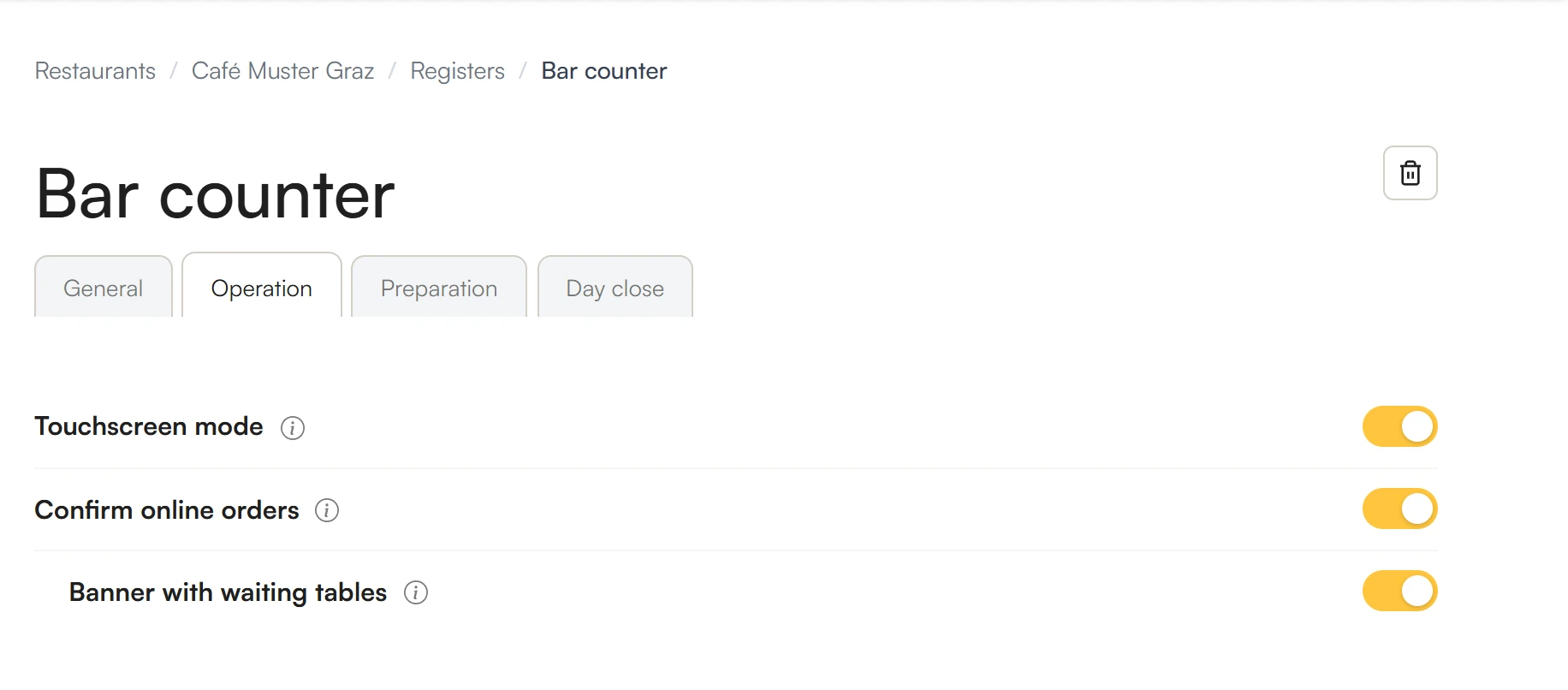
Confirming means: someone has seen the online order and takes care of it. For this, switch on Confirm online orders under Operation.
At this till, a table with an unconfirmed online order stays . In the open table, its online orders sit above the tabs as an entry of their own with waiting time and item count, for example 2 online orders · 4 min · 5 items.
To confirm:
- Open the table.
- Tap the entry with the online orders above the tabs. The orders appear next to it with their items.
- Tap Confirm or the check mark ✓ on the entry. All orders shown are confirmed; an order that arrives in the meantime stays open.
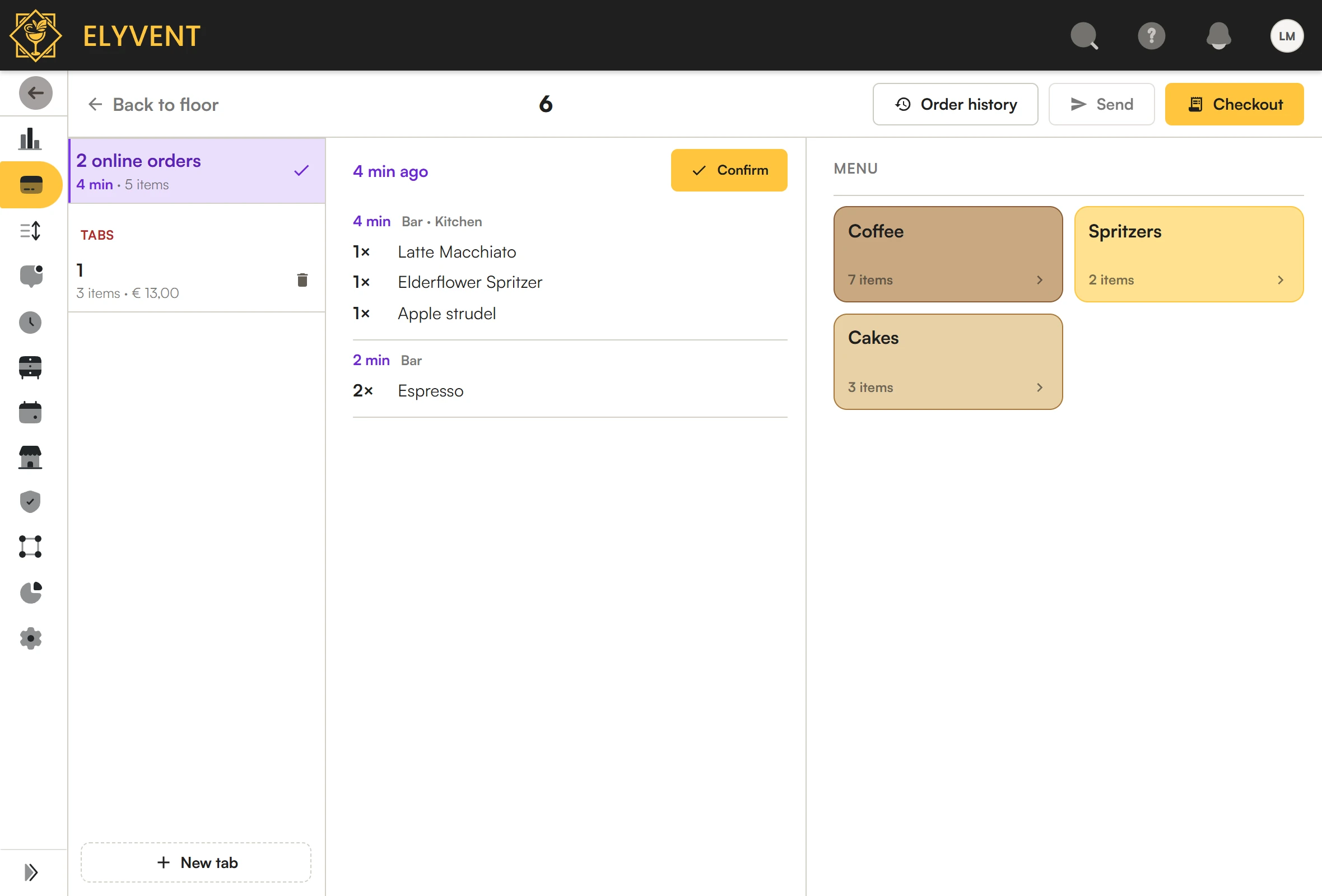
An order is confirmed once and then waits at no till any more. Ready and Complete on the kitchen display confirm it as well. After 24 hours an unconfirmed order is no longer shown.
Confirming requires the till right Online orders → Confirm. The default roles for service staff have it. Without the right, Confirm is greyed out.
Banner with waiting tables
The floor plan shows one area. The banner shows the waiting tables of all table zones of this till, including other areas. The switch Banner with waiting tables appears when Confirm online orders is on, and is then on by default.
The banner sits above the floor plan, with one field per table with an unconfirmed online order: the table name and the waiting time of its oldest order, the longest-waiting table on the left. Tap a field: the table opens with its online orders. In the open table the banner is hidden.
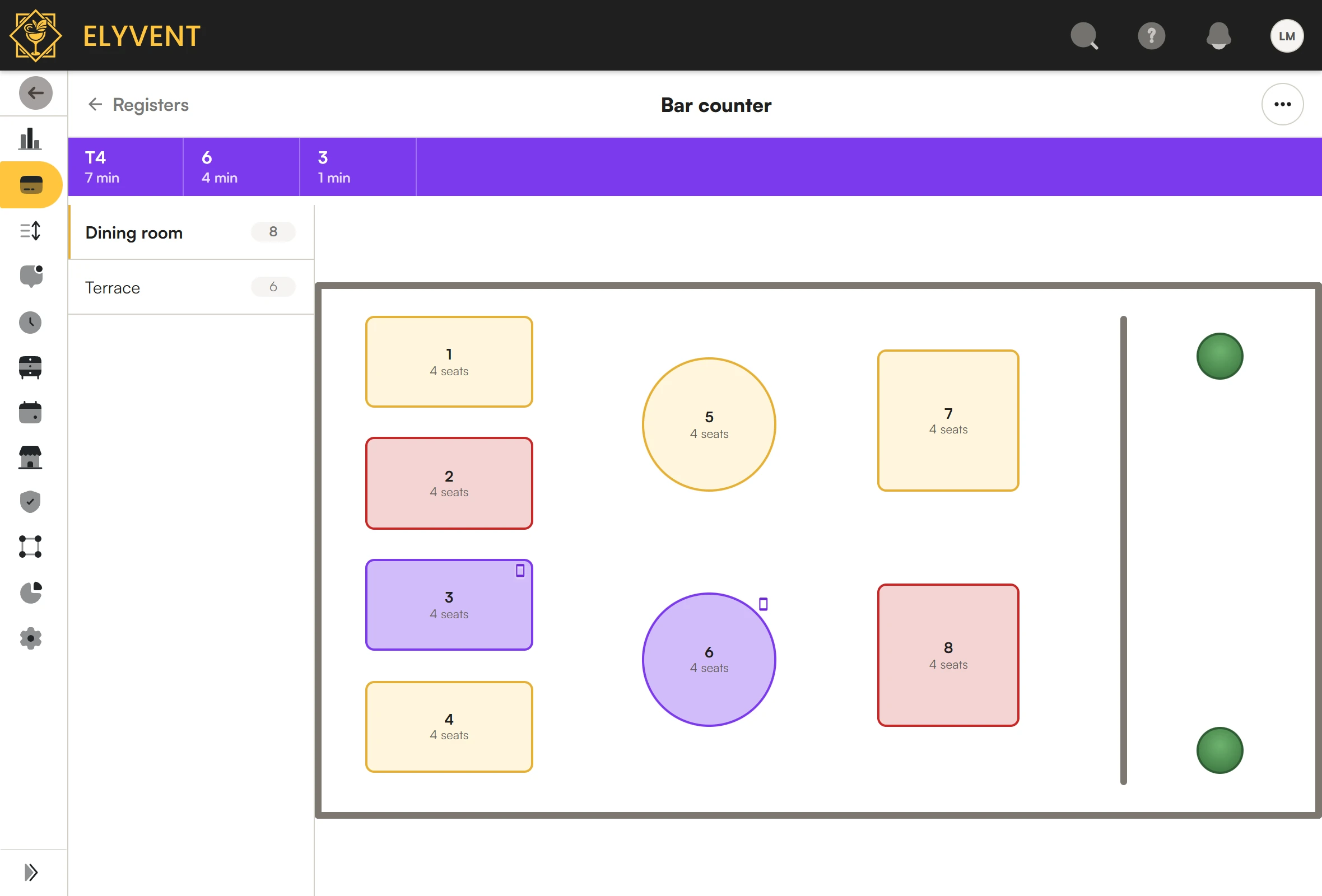
The dining room is shown. Table T4 is on the terrace and appears only in the banner.
Switch the banner off if the till serves a small area and every table is in view anyway.
Settings at a glance
General
| Setting | Meaning |
|---|---|
| Name | Name of the till in the till and in the list, for example its location: "Bar counter". |
| Receipt printer | Printer for this till's bills and receipts. |
| Terminals | Card terminals this till uses for card payments. |
| Till account | Account the accounting export books this till's cash to, for example 2700. Tills with a drawer of their own get accounts of their own. Left empty, the till account from the accounting settings applies. |
| Till code | Precedes the numbers of this till's day closes and cash vouchers in the accounting export, for example Z-K1-0417. |
Operation
| Setting | Meaning |
|---|---|
| Touchscreen mode | On: numbers via the on-screen keypad (tablet). Off: numbers via the keyboard (computer). |
| Confirm online orders | Online orders wait at this till for Confirm. See Confirm online orders. |
| Banner with waiting tables | Only with confirming. See Banner with waiting tables. |
| Purple after an online order | Only without confirming. Minutes until a table is again after an online order. See Table colours. |
Preparation
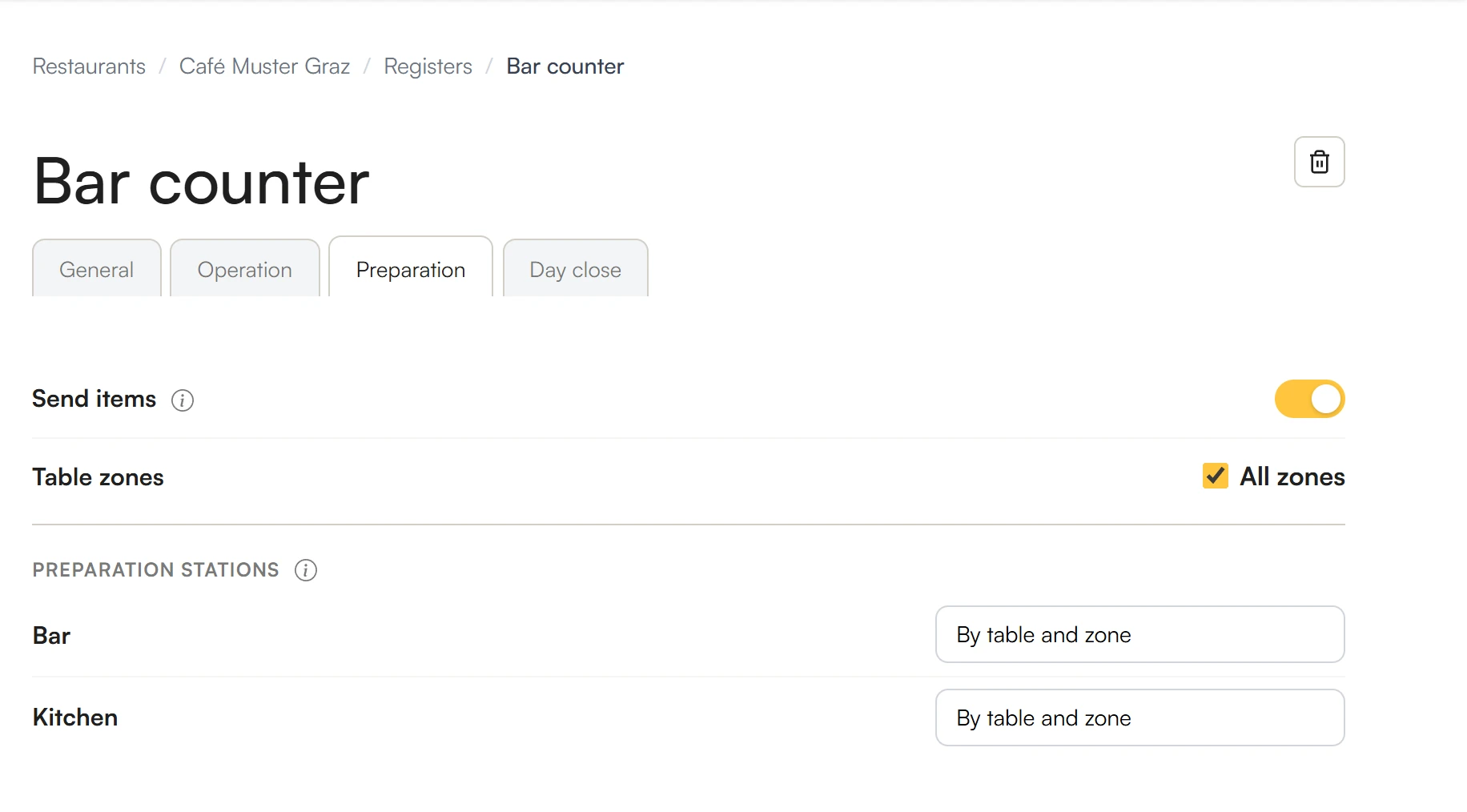
| Setting | Meaning |
|---|---|
| Send items | On: Send sends this till's items to kitchen and bar. Off: the till only takes payment. |
| Table zones | All zones or selected ones. The till shows only the tables and online orders of these zones. |
| Preparation stations | Default: items go to the matching station by table and zone. Alternatively, everything from this till goes to a fixed station per station type. |
Day close
| Setting | Meaning |
|---|---|
| Close every day | On: the till makes a day close every day. Off: for tills without cash from sales, for example the safe; counting, transfers and bank deposits remain possible. It can only be switched off once every sale of this till is in a day close. |
| Steps | The steps of the day close in their order, for example Count the cash → Pay out tips → Move cash to another till → Print. |
| Business day ends at | Sales before this time count to the previous day. If the venue closes at 1 am, 04:00 fits. Set the same time for every till; otherwise the latest end applies to the restaurant. |
| Monthly and annual closing | Automatic: month and year close by themselves if every check passes without a warning; otherwise by hand under Closings. Manually: always by hand under Closings. |
| Compare non-cash payments | Which non-cash payments, for example card payments, the day close compares: required, optional or not at all. |