
As a franchisor you look after the menu once, centrally – and share it with every franchise partner, even when the partner is a company of its own.
Why this helps: a new item, a new price or a corrected allergen reaches every partner without anybody typing anything. The menu is the same at every location of the brand, and your work stays the same – whether you have three partners or thirty.
It works like a company menu, just beyond your own company. The example: “Beispiel Franchise GmbH” shares its menu “Kaffeehaus-Klassiker” with its franchise partner “Muster Gastro GmbH”.
How changes reach the partners
- Every restaurant that imports publishes itself – your own locations just like the partner. The change waits there under Publish. Why: each restaurant decides when something changes at its till.
- Your own locations have a shortcut: with Also publish at my locations you publish the change there at the same time (Part 3). Example: a corrected allergen should apply in all your own branches at once.
- The franchise partner doesn’t: it is a company of its own and always publishes itself.
- The partner only sees what you have published.
Create an invitation link
You can share your company’s menus. If the menu is still at a restaurant, move it to the company first.
- At your company, open the menu and tap Sharing on the left.
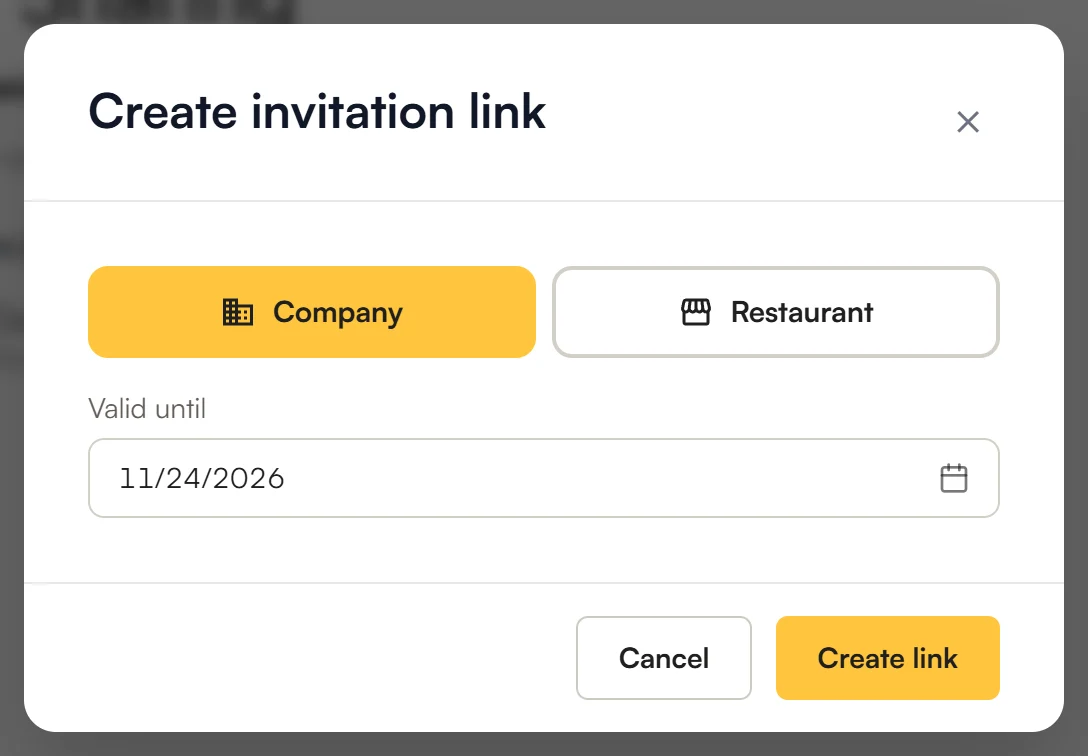
- Tap + Invitation link.
- Choose who may accept the link: a Company – then all its restaurants can import – or a single Restaurant.
- Under Valid until, choose until when the link works.
- Tap Create link → Copy.
- Send the link to your partner, for example by e-mail.
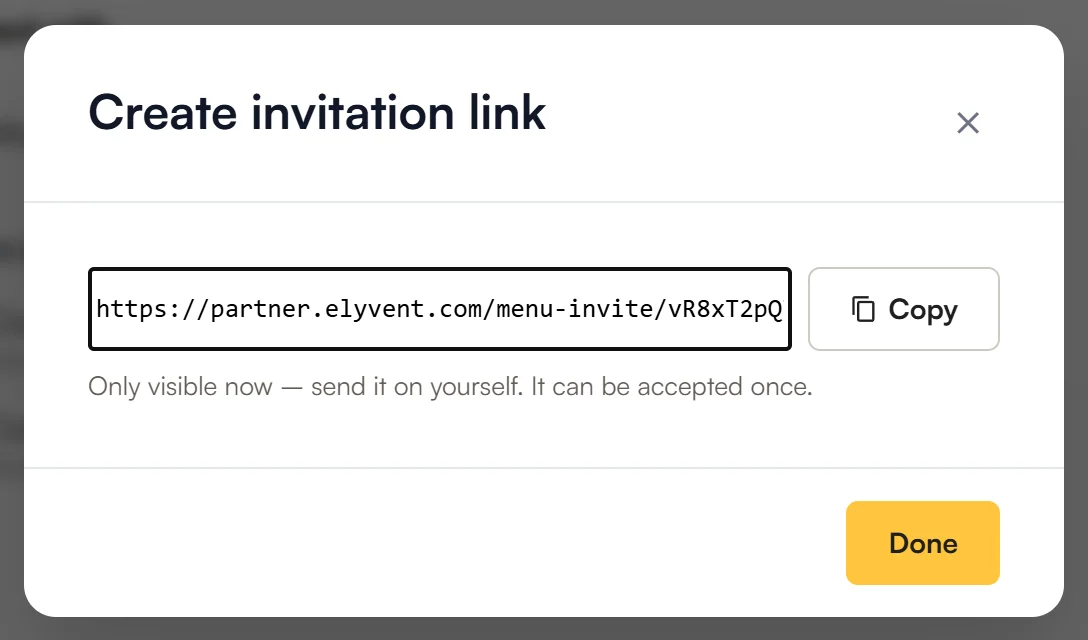
Open invitations are listed on the Sharing page. The ✕ deletes a link, for example if it went to the wrong address.
Share a whole group
Instead of one menu you can share a whole group: in the Menus list, tap Share on the group. The share then covers every menu in the group, future ones too. Handy when you create a new menu for all partners every season. If you take a menu out of the group, the share ends for it.
Accept the invitation
The franchise partner does this.
- Open the link and sign in.
- Choose which company (or restaurant) you accept for.
- Tap Accept.
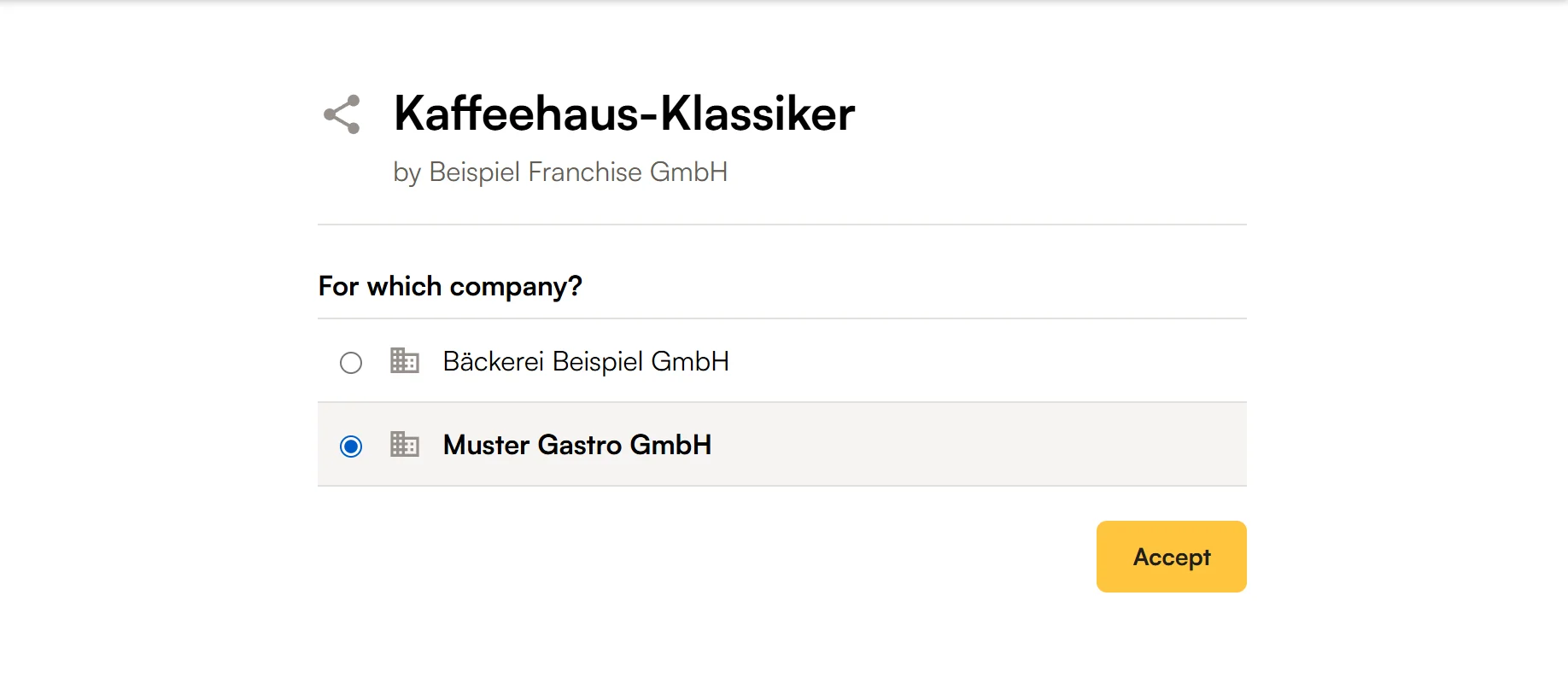
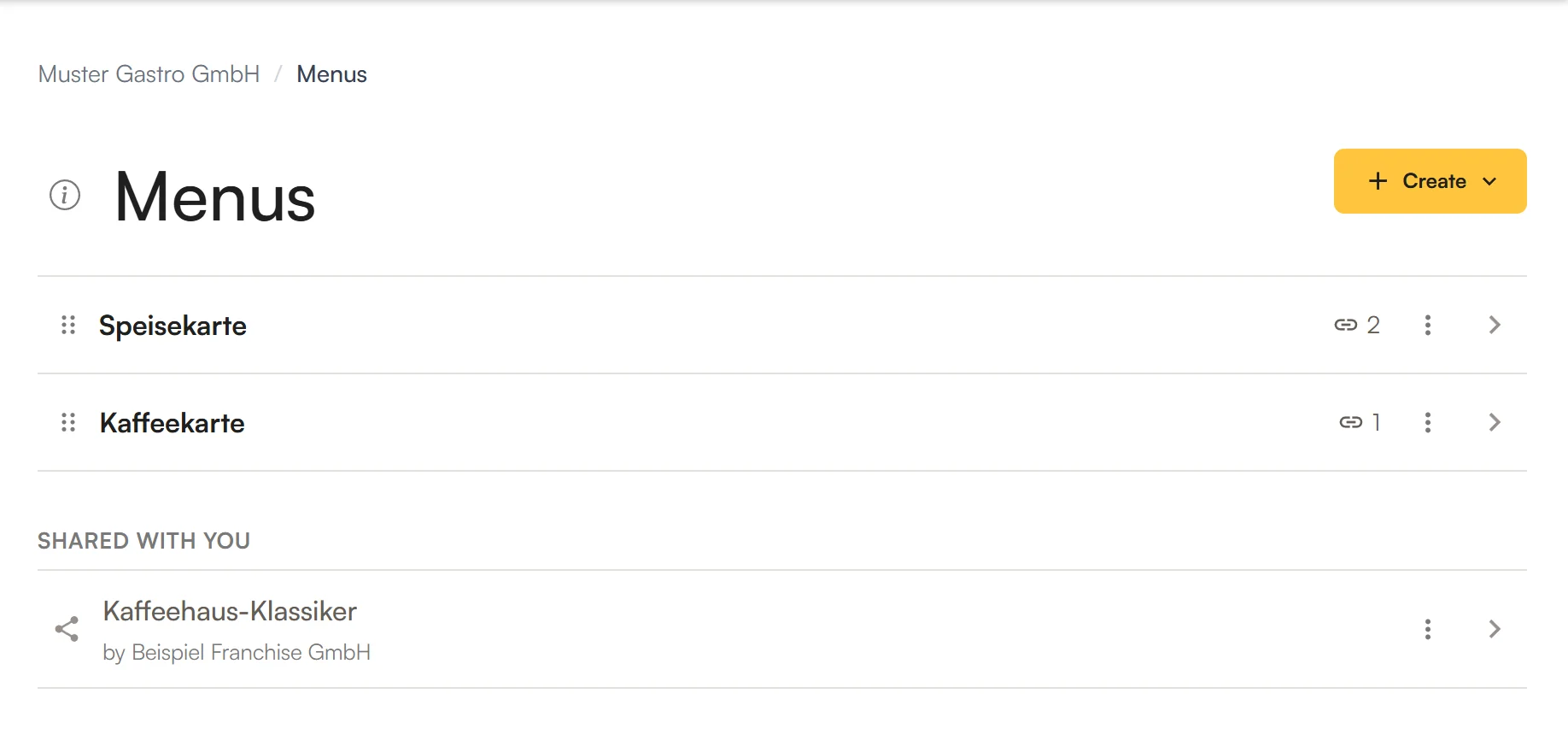
The menu then appears in the Menus list under Shared with you. You can look at it there, but not change it – you import from it into your own menus.
Import shared categories
The partner imports as in Part 2, into a menu of its restaurant:
- Open the menu and, next to Categories, tap Create → Import….
- On the left, under Shared with you, choose the menu.
- Tick the categories and tap Link.
- Map the stations and revenue accounts and publish.
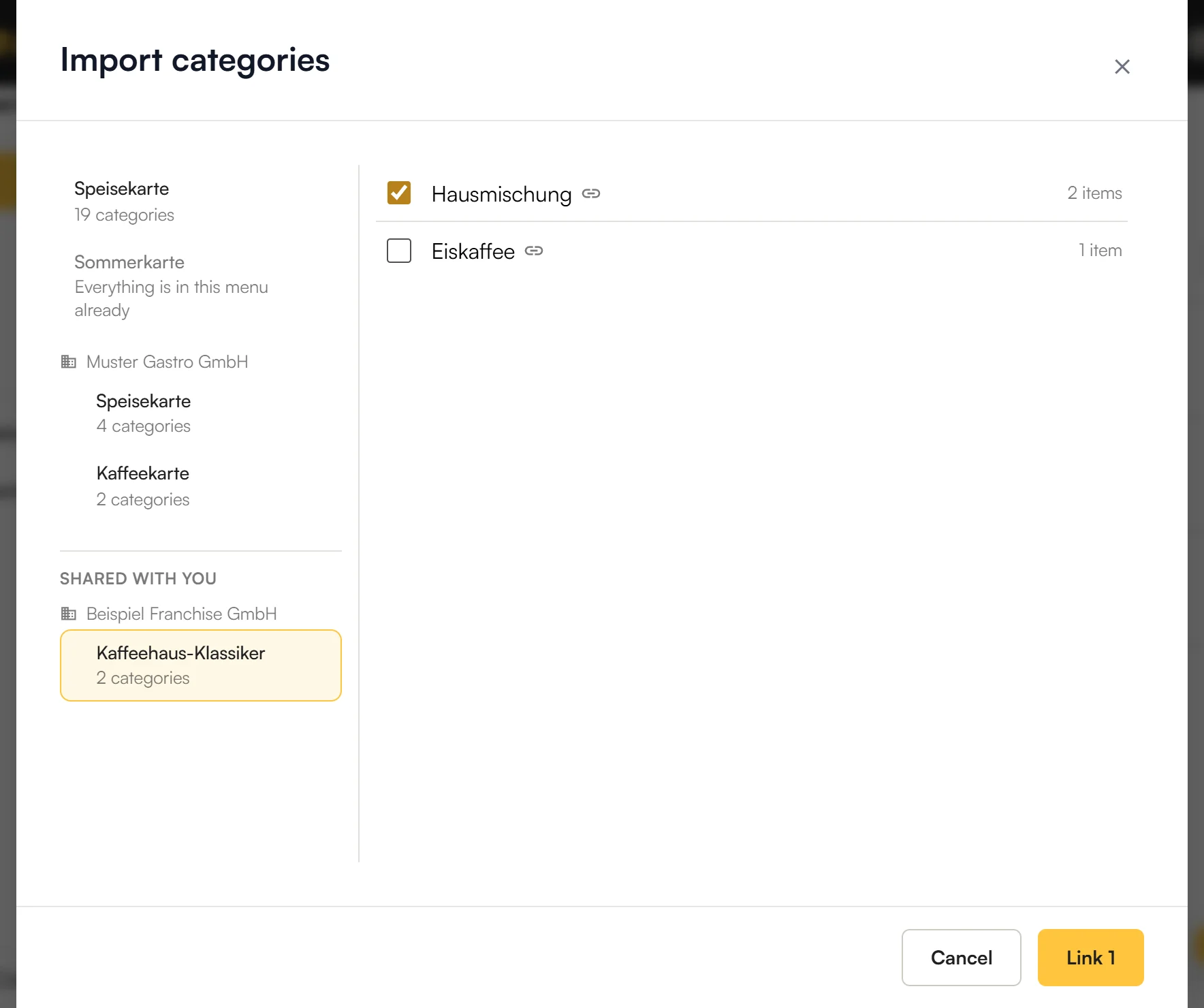
- Link only. Shared categories can’t be moved here – they belong to the franchisor.
- Map. As with a company menu, the partner maps the franchisor’s groups to its own stations and revenue accounts (Part 3). That way it books the sales to its own accounts.
- Another currency or country. If the franchisor works in another currency or in another country, the partner needs its own prices and tax rates before it can publish. Elyvent shows which items are affected.
Own prices at the partner
When the partner taps into a linked field, there is only Change here only. The original belongs to the franchisor – only the franchisor can change it.
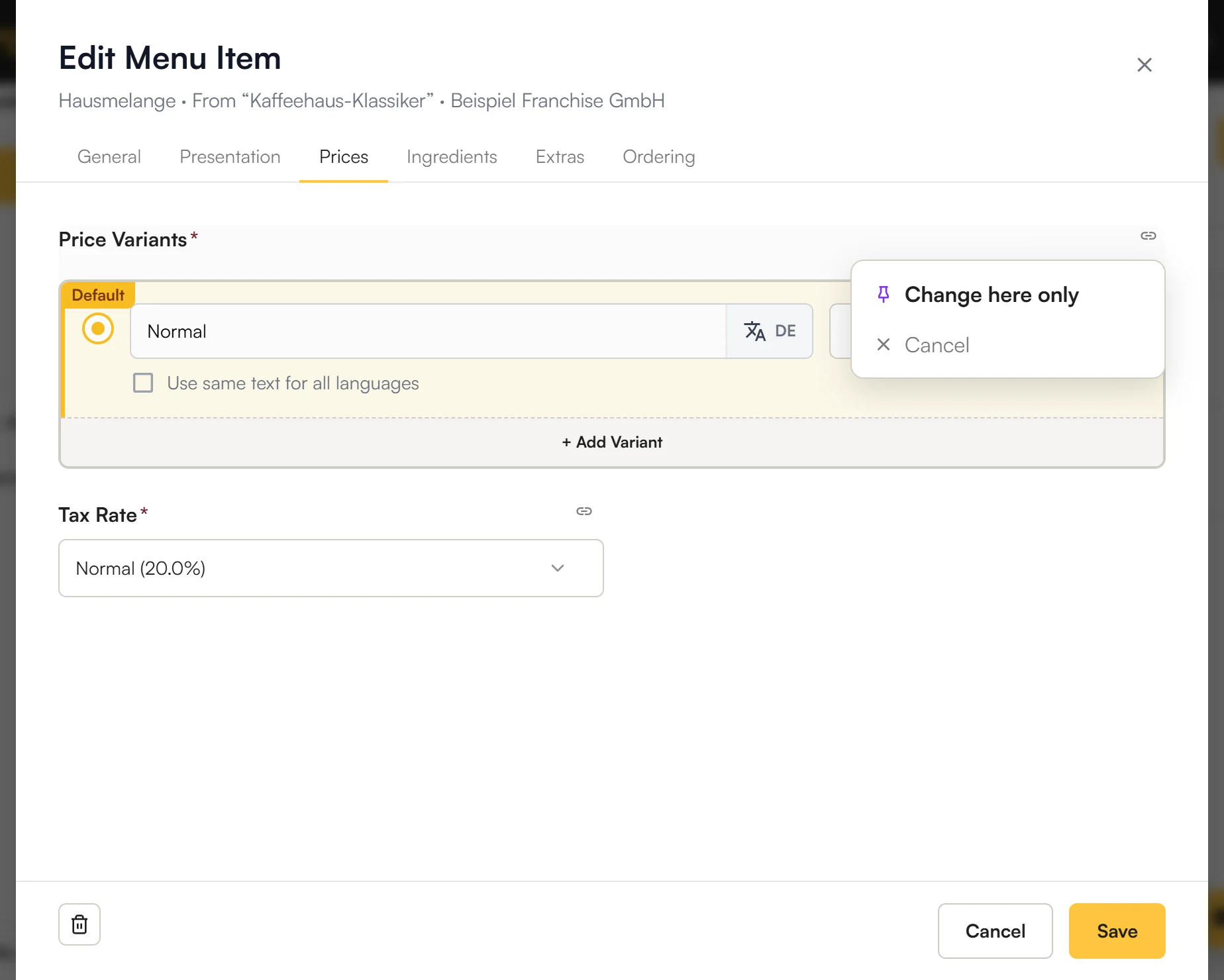
An own value stays as it is: if the franchisor later changes the price, the partner keeps its own – until it taps ↺. See Detach single fields from the original.
Pass on: for master franchisees
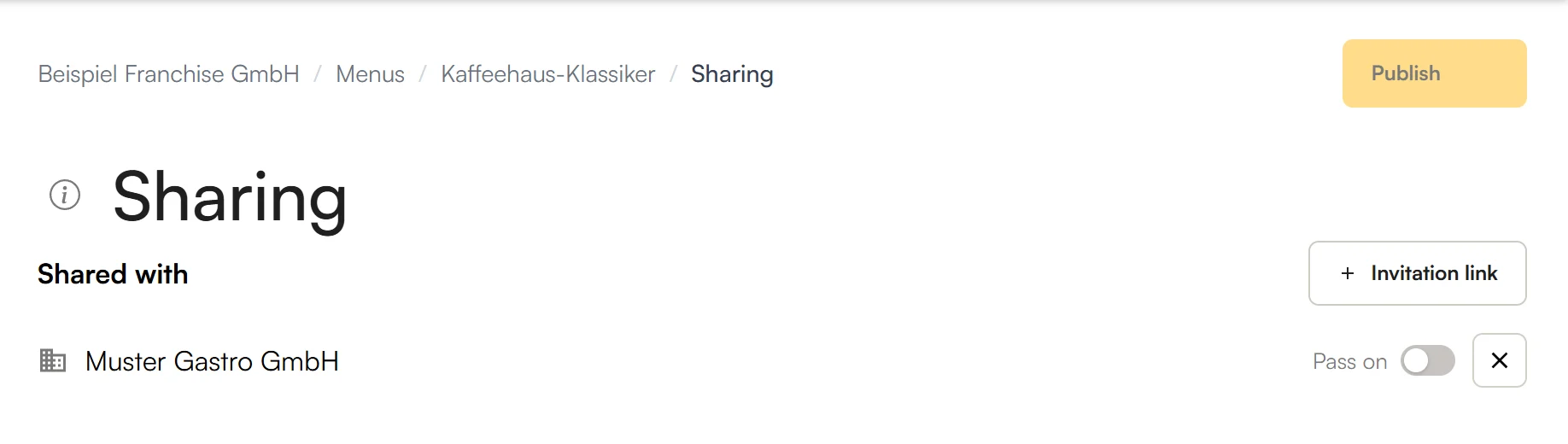
Some franchise systems have master franchisees: they look after many franchisees in a region themselves. So that a master franchisee can pass your menu on to them, you switch on Pass on for it.
- Pass on on: it may pass your menu on – with your items – using its own invitation links. It does this via ⋮ → Pass on… next to the shared menu.
- Pass on off (default): it uses your menu itself, but may not share it.
You find the switch on the Sharing page next to each partner that is a company.
End the share
Both sides can do this:
- The franchisor: on the Sharing page, tap ✕ next to the partner → End the share. Whatever the partner passed on ends with it.
- The franchise partner: in the Menus list, under Shared with you, tap ⋮ next to the menu → End share.
What happens then:
- The partner can’t import anything from it any more.
- Whatever it imported disappears from its editor at once. Its guests still see it until it next publishes – so nobody suddenly faces an empty menu.
- If you share again later, nothing comes back by itself: the partner imports again and sets its own prices again.
Frequently asked questions
The link says it has already been accepted or has expired.
Each link can be accepted only once and only works until the chosen day. Ask the franchisor for a new one.
I lost the link.
It can’t be shown again. Delete the open invitation on the Sharing page and create a new link.
I’m not allowed to accept the invitation.
You lack the right for it at your company. Ask your manager – or have them accept the link.
Why is “Change everywhere” missing for shared items?
The original belongs to the franchisor. You can only set your own values at your place – with Change here only.
Does my partner see my changes straight away?
No. Only once you publish them – and then the partner decides when they apply there.
What is “Pass on” for?
For master franchisees: it lets a partner share your menu with its own franchisees. See Pass on.
Why doesn’t my partner see a new menu?
Partners only see what you have published and shared. Publish the menu – and share it with a link of its own if it isn’t in a shared group.
Do I need an invitation for my own restaurants?
No. Your company’s restaurants see your company menus without an invitation. See Part 3.
What happens to my menu when the share ends?
The imported categories and items disappear from your editor and, with your next publish, for your guests too. Until then your menu stays as it is.