
You have several locations that offer all or some of the same things? Then look after the shared menu once, centrally at the company. Each restaurant imports it – as in Part 2, except that the original now belongs to the company.
Why this helps: a new price, a new item, a corrected allergen – you change it once, and it reaches every restaurant. The menus of all locations stay consistent, and nobody types the same change in five times.
The example: “Muster Gastro GmbH” looks after a coffee menu. “Café Muster Graz” and “Café Muster Wien” use it.
Create a company menu
- Open your company on partner.elyvent.com and tap Menus on the left.
- Tap Create → New menu and enter a name, for example “Coffee menu”.
- Add categories, items and extras – as in Part 1.
- Publish it. Only then can the restaurants import it.
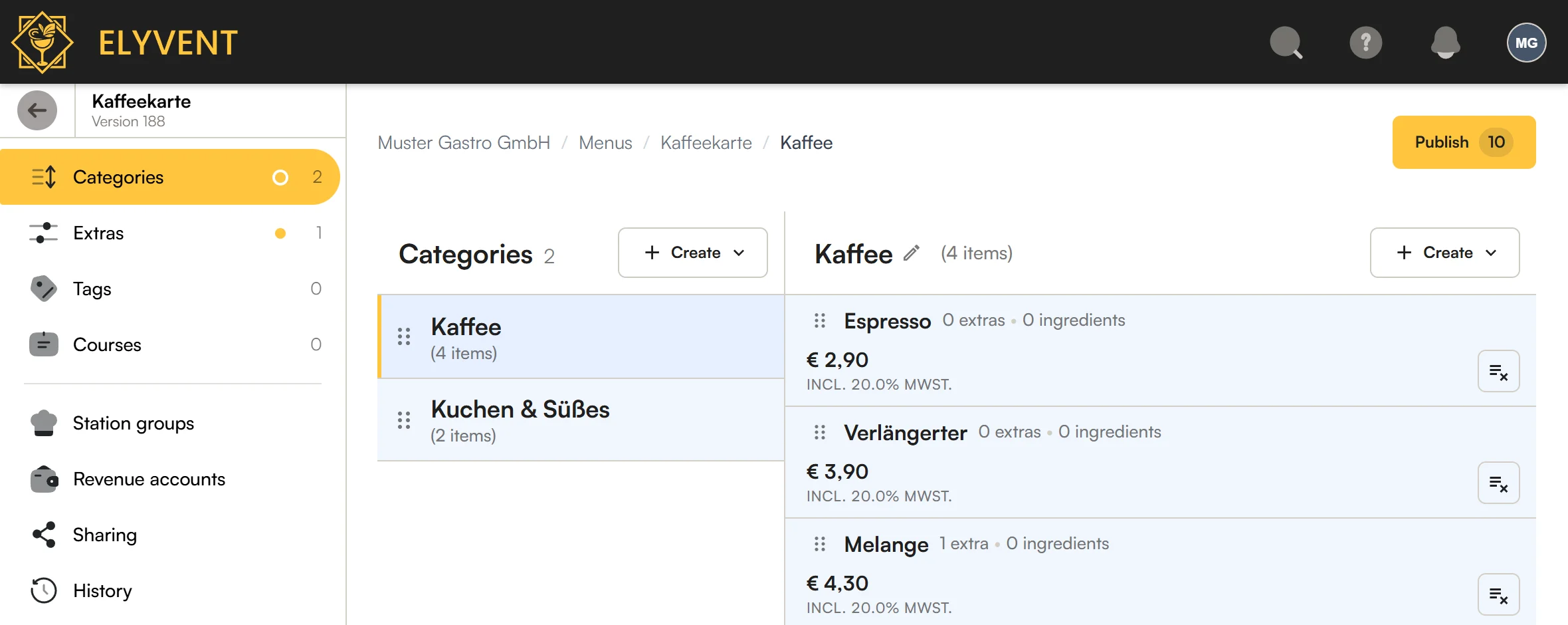
The editor looks like the restaurant’s, with three differences:
- No live. A company menu never goes live itself. Guests see it through the restaurants that import it.
- Station groups instead of stations. Each restaurant has its own preparation stations: in Graz the station is called “Bar”, in Vienna “Schank”. So the company only gives each item a group under Ordering, for example “Bar”. Each restaurant says which of its stations belongs to it – see Map.
- Revenue account groups instead of revenue accounts. Each restaurant books to its own accounts. That way Graz’s coffee sales land on account 4011 and Vienna’s on 4012 – the locations stay apart in the accounting.
No Menus entry in your company? Then the feature isn’t switched on for you yet – write to us.
How a change reaches the restaurants
The same applies as in Part 2: when the company publishes a change, it waits in every restaurant that imports the menu – until the restaurant publishes it. That is why the company always publishes Now; the restaurant picks the time.
Why does the change wait at the restaurant? Because the restaurant knows its business: new prices may only apply after the weekend, and the till shouldn’t change in the middle of lunch service.
Publish a company menu
- In the company menu, tap Publish.
- Tick the changes that should apply.
- Decide whether to switch on Also publish at my locations (see below).
- Tap Publish now.
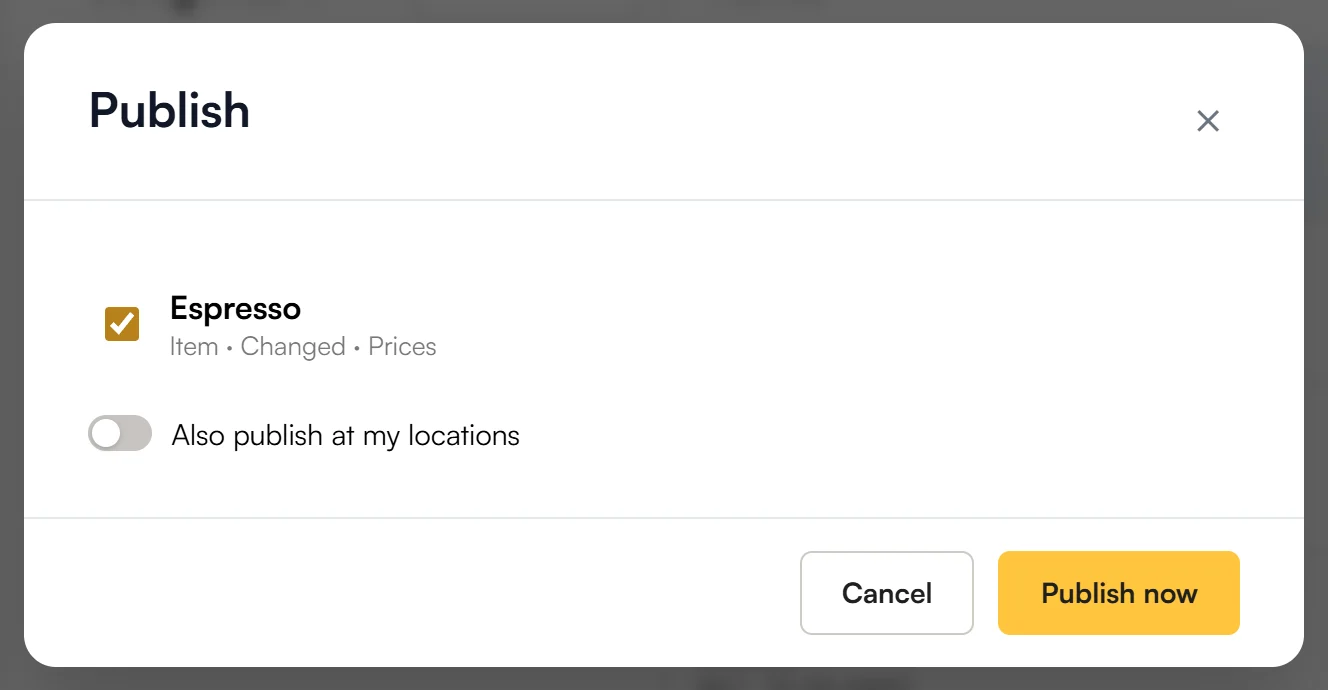
“Also publish at my locations”
Should a change apply in your restaurants straight away, for example a corrected allergen? Then switch on Also publish at my locations. Elyvent publishes it there at the same time – as if each restaurant had published it itself.
This is exactly what happens:
- Only the changes of this publish. Whatever else waits at a restaurant – its own changes or an older update from the company – keeps waiting.
- Only at the company’s own restaurants that import this menu, and only where you may publish.
- Never at other companies. If you shared the menu with another company (Part 4), it always publishes itself.
- Where it can’t, the change waits as without the switch – for example when a restaurant hasn’t mapped a new group yet. Elyvent tells you how many locations are still waiting.
Import at the restaurant
The company’s own restaurants don’t need an invitation for this.
- Open the restaurant and tap Menus on the left.
- Tap Create → Import….
- Choose the company menu, for example “Coffee menu”, and tap Import.
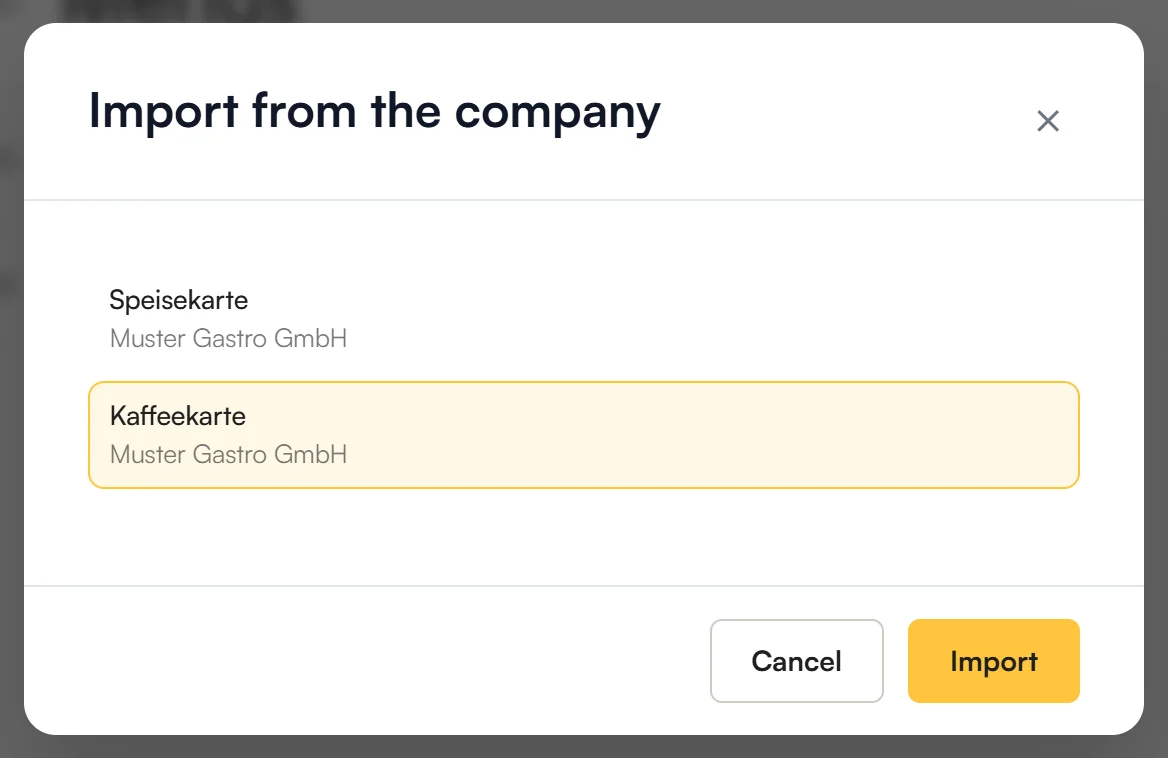
The restaurant now has a menu of its own, “Coffee menu”, whose categories are linked to the company. New items in these categories come along; new categories of the company you import when you need them.
Then: map, publish, switch live.
Only need part of the company menu in an existing menu? Then import single categories as in Part 2 – the company’s menus are listed in the window under its name.
Map stations and revenue accounts
The company only says “Bar” or “Drinks”. The restaurant says what that means there: at which of its own stations the ticket prints and to which of its own revenue accounts it is booked.
- At the restaurant, open the imported menu.
- Tap Preparation stations on the left.
- Next to each group, choose your station, for example “Bar” → “Schank”.
- Do the same under Revenue accounts, for example “Drinks” → “4011 Drinks revenue Graz”.
- Publish. The mapping appears as a row of its own, “Stations and revenue accounts assigned”.
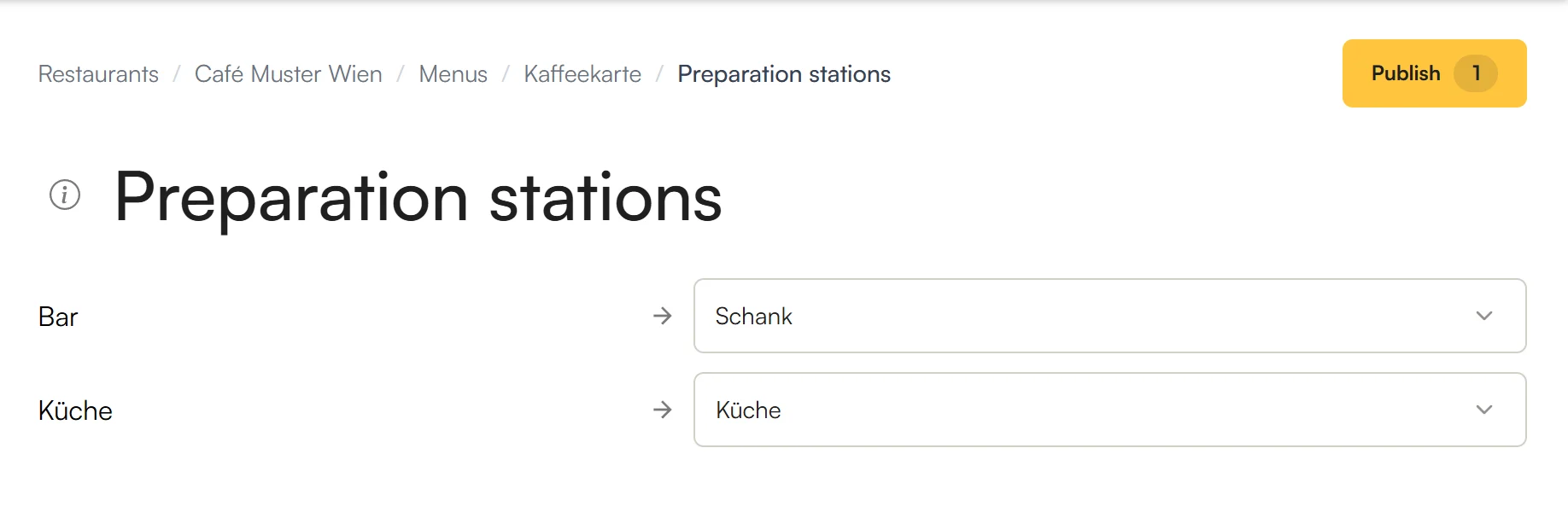
- No mapping, no publishing. As long as a group is missing, the till wouldn’t know where to print the ticket or where to book.
- Later too. If the company uses a new group, for example “Pastry”, you map that too before you publish again.
- Applies to all menus of the restaurant that import from this company.
Take over the company’s changes
When the company changes an item and publishes, the change waits at the restaurant under Publish – with a note saying which menu it comes from:
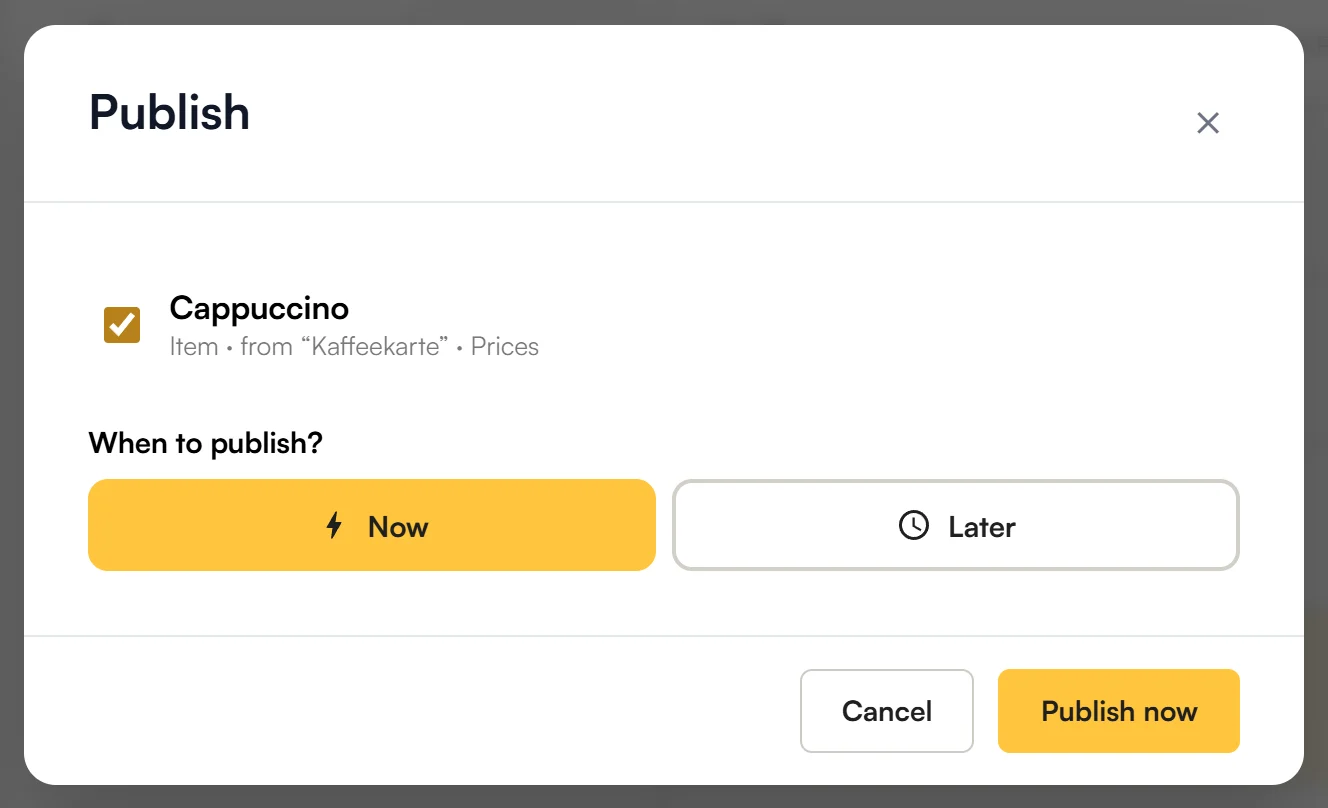
The restaurant publishes it Now or Later, for example new prices only from Monday. An item the company deleted also disappears only with this publish.
Own values at the restaurant
The restaurant changes linked items as in Part 2:
- Change here only gives only this restaurant its own value, for example a higher price in Vienna. If the company later changes the price, Vienna keeps its own. ↺ brings back the company’s value.
- Change everywhere changes the company menu itself. This only works for items and categories, and only if you may edit and publish menus at the company. The change is published at the company at once and then waits in every restaurant under Publish – yours too.
Preparation station and revenue account always come from the mapping. A restaurant can set its own picture with Change here only.
Turn an existing menu into a company menu
You already have a good menu at one restaurant and want to use it for all locations?
- Publish it, so nothing is waiting.
- At the restaurant, in the Menus list, tap ⋮ next to the menu → Move….
- Choose the company and tap Move.
For guests nothing changes: if the menu is live, it stays live. From now on it is edited at the company, and the other restaurants can import it. You need rights at the company for this. A menu that itself imports something from a company can’t be moved.
Frequently asked questions
Does each restaurant have to publish the company’s changes itself?
Yes – unless the company switches on Also publish at my locations when publishing. Then the change applies at once at its own restaurants where you may publish. See “Also publish at my locations”.
Does “Also publish at my locations” also publish a restaurant’s other pending changes?
No. Only the changes you are publishing at the company right now. Everything else keeps waiting.
Can a restaurant have a different price from the company’s?
Yes, with Change here only. See Own values at the restaurant.
One restaurant shouldn’t offer an item from the company menu.
- For a while: set it to Hidden at that restaurant. This applies at once and only there (Active, Sold out, Hidden).
- For good: delete it in the restaurant’s menu and publish. The company and the other restaurants keep it. If it sat in a linked category, Bring back brings it back; an item imported on its own you import again.
Why can’t I switch the company menu live?
Only a restaurant switches live. Import the company menu at the restaurant and switch it live there.
Why can’t I publish the menu – “assigned”?
A station or revenue account group of the company isn’t mapped at this restaurant yet. See Map stations and revenue accounts.
Do my own restaurants need an invitation?
No. A company’s restaurants see its menus without an invitation. You only need invitations for other companies – see Part 4.
Why can’t I delete the company menu?
As long as restaurants use it, it stays. Remove it at the restaurants first.
What’s next?
You are a franchisor and want to share your menu with your franchise partners? Continue with Part 4: Franchise.