
Many venues have more than one menu, for example a breakfast menu and a summer menu. The coffee is on both. If you create it twice, you change every price twice – and sooner or later the two menus no longer match.
So you import the coffee: the summer menu gets no copy, it shows the breakfast menu’s coffee. You look after it in one place, the original, and the summer menu takes over every change.
How linking works
Three rules, and everything else follows:
- What arrives is what the original has published. Whatever is still a work in progress in the breakfast menu doesn’t reach the summer menu.
- Each menu publishes itself. A new price from the breakfast menu waits in the summer menu under Publish. Why: you decide for each menu when it applies – for example from Monday instead of in the middle of the Sunday rush.
- Own values stay. Whatever you changed here only in the summer menu, the original no longer changes.
Import categories
- Open the menu the coffee should go into, for example the summer menu.
- Next to Categories, tap Create → Import….
- On the left, choose the menu you import from, for example “Breakfast”.
- On the right, tick the categories, for example “Coffee”.
- Leave Link selected at the top and tap Link 1 at the bottom.
- Publish the summer menu.
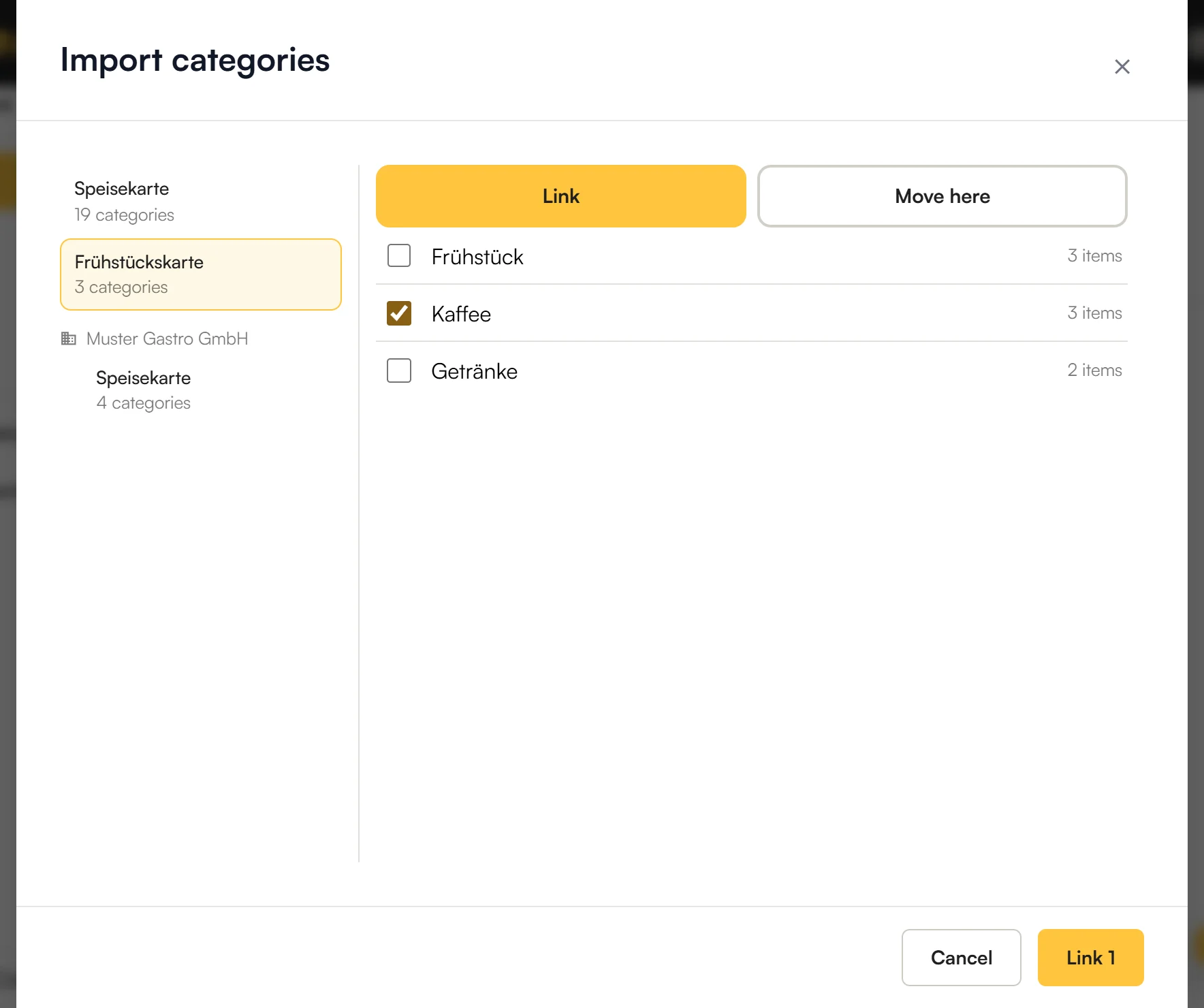
You can only link what is already published in the other menu. A new category still waiting there is grey: “Not published in “Breakfast” yet”.
| Selected at the top | What happens |
|---|---|
| Link | The category stays in the breakfast menu and also appears in the summer menu. The breakfast menu stays the original. |
| Move here | The summer menu becomes the original; from then on you look after the category there. The breakfast menu keeps showing it, linked – unless you untick “Keep linked in Breakfast”. |
You move a category when it really belongs in the other menu – for example when you want to look after the coffees in a drinks menu of their own from now on.
You import extras, tags and courses the same way, each on its own page in the editor.
Import single items
You don’t need the whole category, just two items from it?
- In your menu, choose the category the items should go into.
- On the right, tap Create → Import….
- Choose the items and confirm.
Name, prices, extras and everything else come from the original. Where the item sits is up to your menu, though: if the original moves it to another category, it stays where it is in yours.
How to recognise linked things
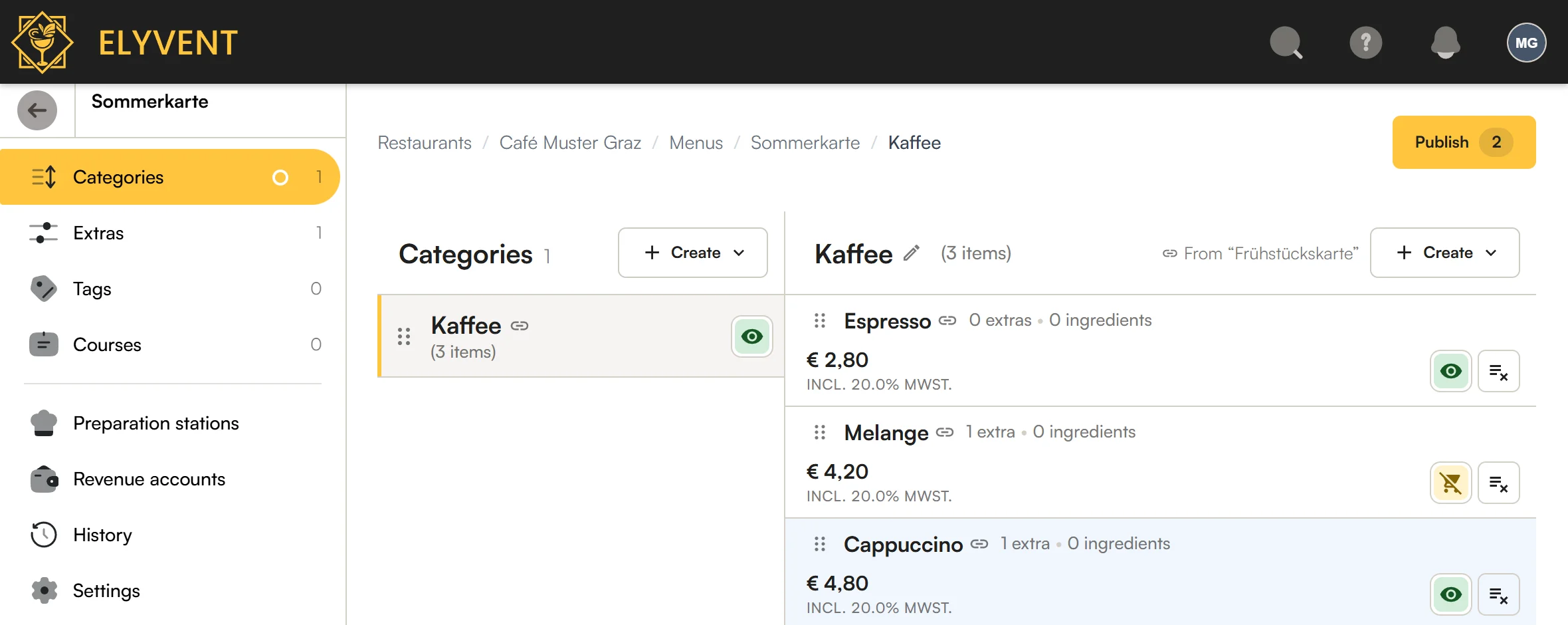
- The chain icon next to a name means: linked.
- Above the items it says where the category comes from, for example “From »Breakfast«”.
Change linked items
Open the item. Fields from the original have the chain icon on the right. Tap into one and Elyvent asks where you want to change it:
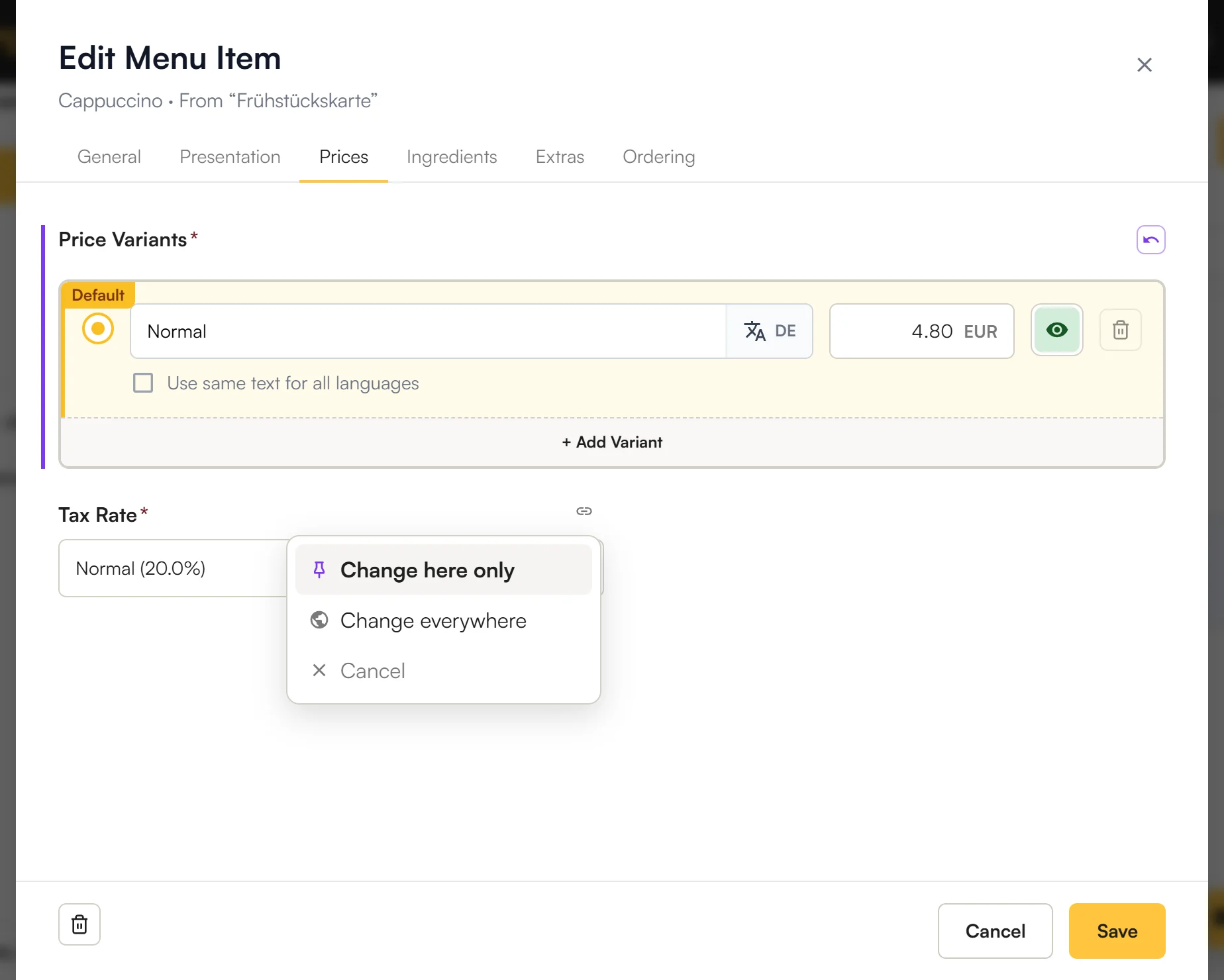
| Choice | What happens | Good for |
|---|---|---|
| Change here only | Only this menu gets its own value. It applies once you publish this menu. | The cappuccino costs 40 cents more on the terrace. |
| Change everywhere | You change the original. The change first waits under Publish of the breakfast menu. After that it arrives in every menu that shows the item – this one too – and waits there until it is published. | The cappuccino gets more expensive everywhere. |
Lists ask too – extras, allergens, tags and “Suggest with it” – as soon as you add, remove or move an entry:
- Change here only: from then on, the whole list belongs to this menu, order included. New entries from the original no longer arrive – until you tap ↺. Example: the summer menu also offers ice cubes with the cappuccino.
- Change everywhere: the original’s list changes. Example: you add a forgotten allergen once, and it applies everywhere.
Two things never ask: the categories – where an item sits is up to each menu – and Active, Sold out and Hidden, which always apply in your restaurant only (Part 1).
Detach single fields from the original
Change here only detaches exactly this field from the original. The rest of the item keeps following the original.
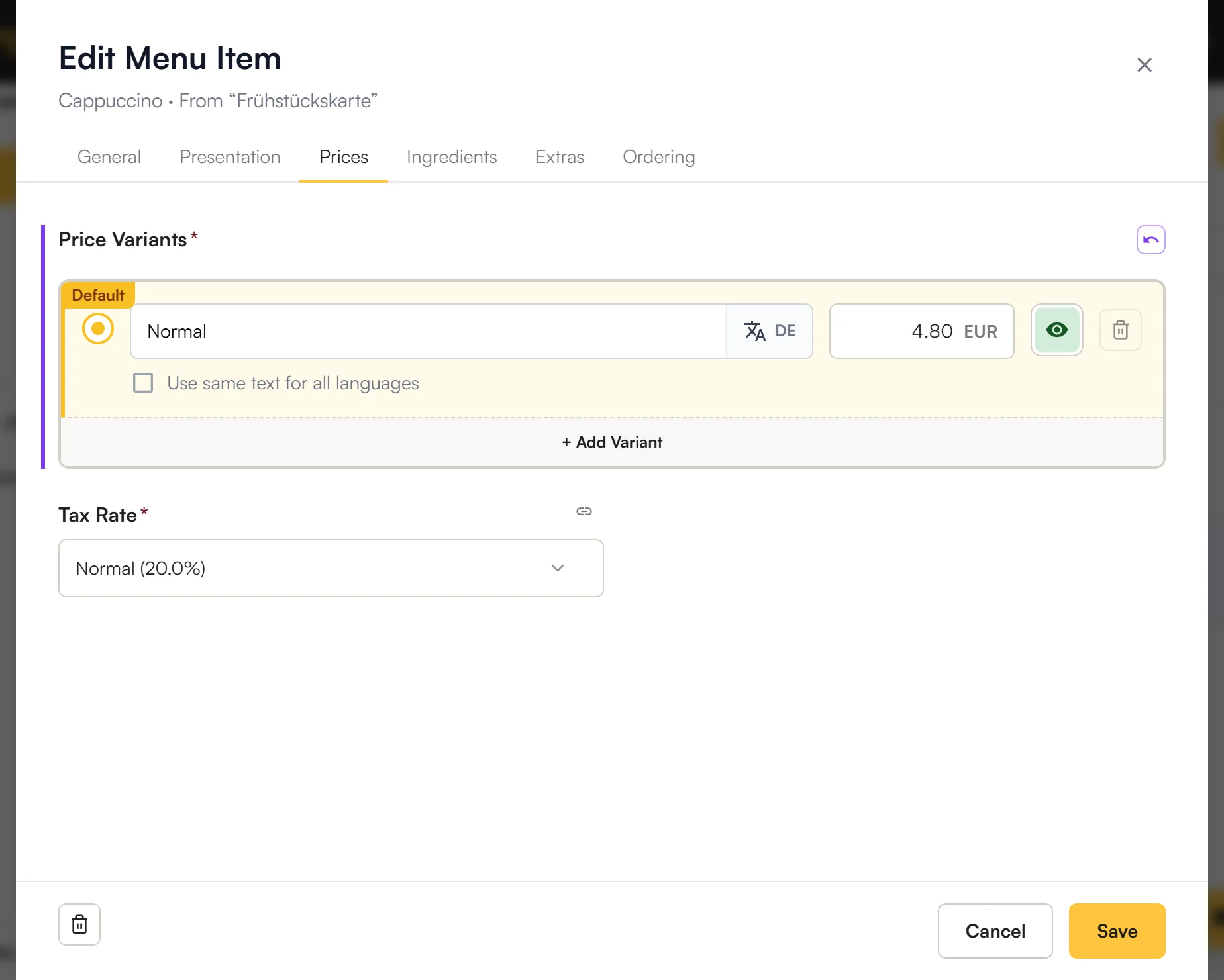
- An own value stays as it is. If the breakfast menu later changes the cappuccino’s price, the summer menu stays at its € 4.80. No change arrives under Publish for it either.
- You recognise it by the violet bar on the left.
- Back to the original: tap the violet ↺ button on the right, save and publish. The summer menu then shows the breakfast menu’s value again and follows it from now on.
Example: you look after the cappuccino’s name, description and allergens in the breakfast menu; only the price is the summer menu’s own. If the breakfast menu changes the description, the new one arrives in the summer menu – the price doesn’t.
Changes from the original
When the breakfast menu publishes a change, you see it in the summer menu’s editor at once. Guests don’t see it there yet, though: it waits under Publish, with a note saying where it comes from.
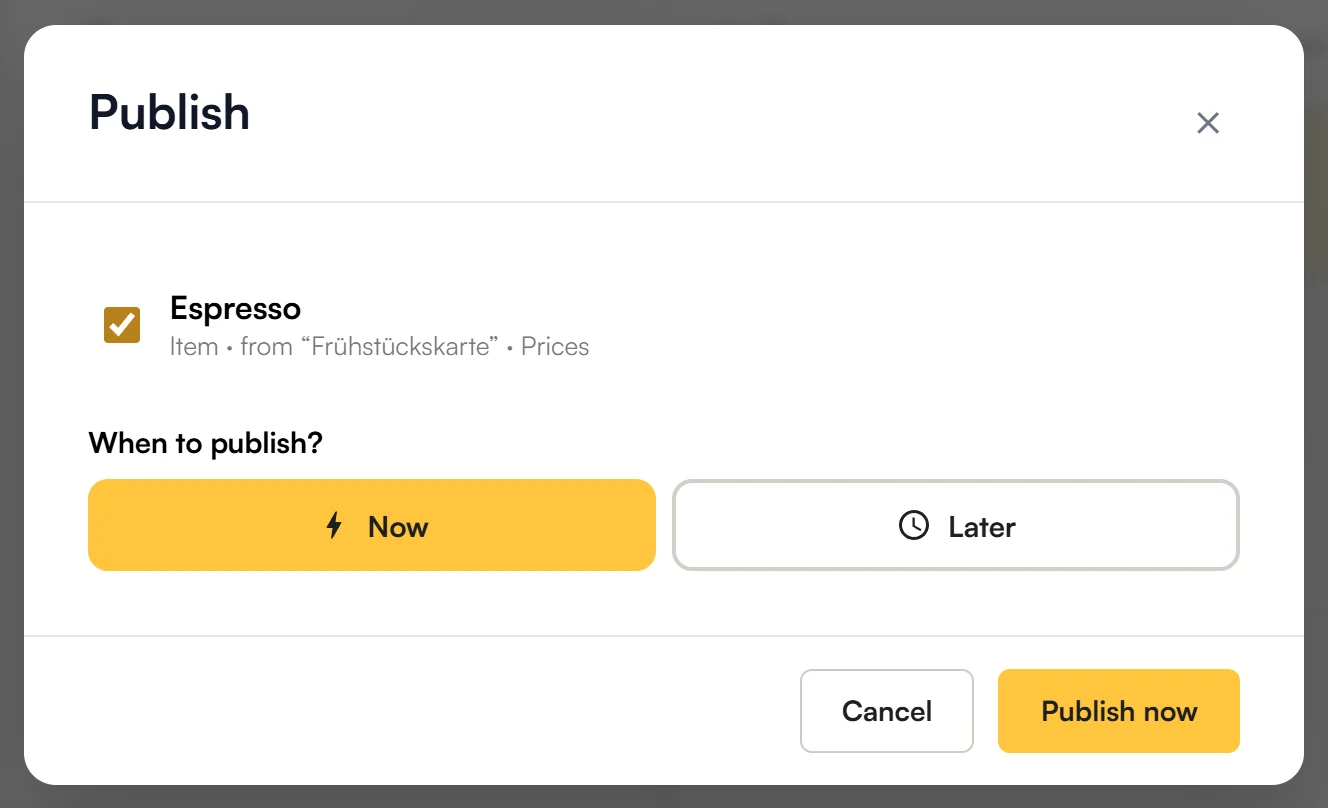
Publish it Now or Later. Until then the summer menu’s guests see the old state. This applies to everything that happens in the original: new prices, a new item in the category, a deleted item.
Remove here only
An imported item doesn’t fit in the summer menu? Delete it there like any other item. It disappears from this menu only and stays there in grey as “deleted” – the breakfast menu and all others keep it. Bring back (↺) brings it back. Both apply once you publish the summer menu.
Duplicate a whole menu
You want to use a menu as the starting point for a new one?
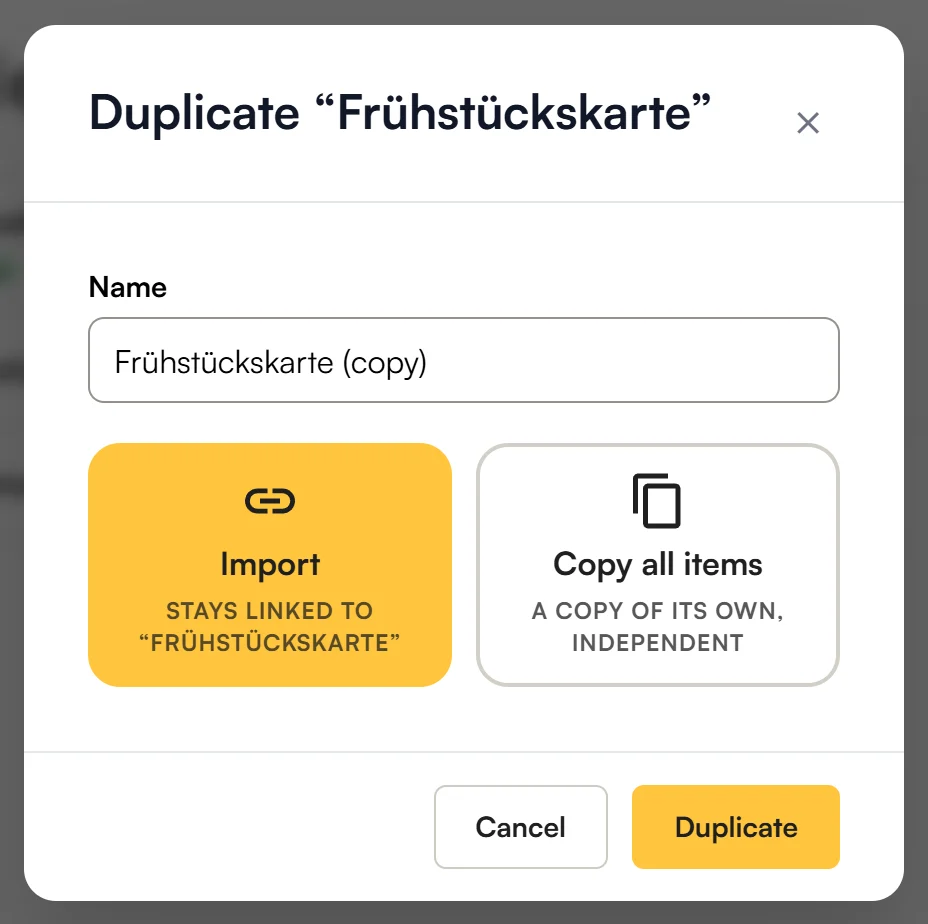
- In the Menus list, tap ⋮ next to the menu → Duplicate….
- Give the new menu a name.
- Choose Import or Copy all items.
- Tap Duplicate and publish the new menu.
| Choice | What happens | Good for |
|---|---|---|
| Import | The new menu links all of the original’s categories. New items in those categories come along later; new categories of the original you import when you need them. | The summer menu should follow the breakfast menu, with only a few prices of its own. |
| Copy all items | An independent copy with all categories, items, extras and pictures. Nothing follows the original any more. | You build something entirely new from it, for example an evening menu. |
Import only works when all of the original’s categories are published.
Frequently asked questions
Does the price in the summer menu change when I change it in the breakfast menu?
Yes, once you publish it in the breakfast menu – unless the summer menu has a price of its own. The new price then waits in the summer menu under Publish. See How linking works.
How do I give an item a different price in just one menu?
Open the item in that menu, tap into the price and choose Change here only. See Detach single fields from the original.
Why doesn’t my menu take over the original’s new price?
It probably has a price of its own (violet bar). Tap ↺, save and publish – the original’s price applies again. See Detach single fields from the original.
Why doesn’t the change from the original arrive?
One of three reasons:
- It isn’t published in the original yet.
- It is waiting in your menu under Publish.
- Your menu has an own value for this field.
Why can’t I link a category?
It isn’t published in the other menu yet. Publish it there first.
What happens if I delete the original menu?
Items that another menu shows stay there.
Link or copy – which is better?
Link, as long as the items should stay the same: you look after them once, and every menu takes over the changes. Copy only when it becomes something of its own that has nothing to do with the original any more.
What’s next?
You have several locations and want to look after one menu for all of them? Continue with Part 3: Several restaurants.